
While we review your shop
What happens after you sign up, and what to do in the meantime.
We check every new shop before it can sell. You’ll get an email as soon as yours is approved.
Find your shop dashboard
Log in, then go to onedollarshopper.com/dashboard. Bookmark it: it’s where you run your shop.
Get your shop ready
At the top of your dashboard there’s a short list called Get your shop ready. Each item takes you to the right page, and finished items are ticked off.
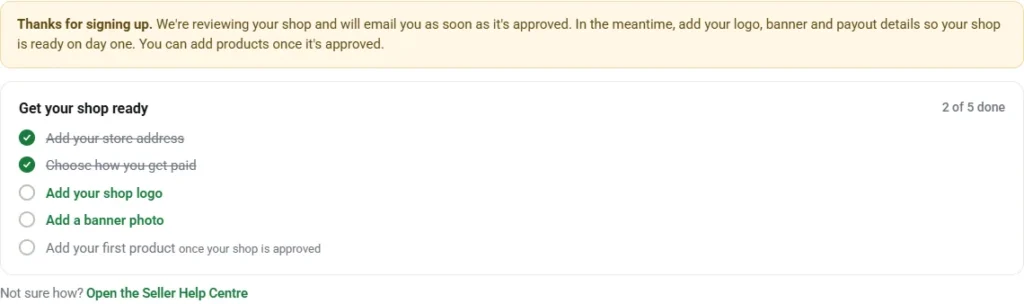
Add your logo and a banner
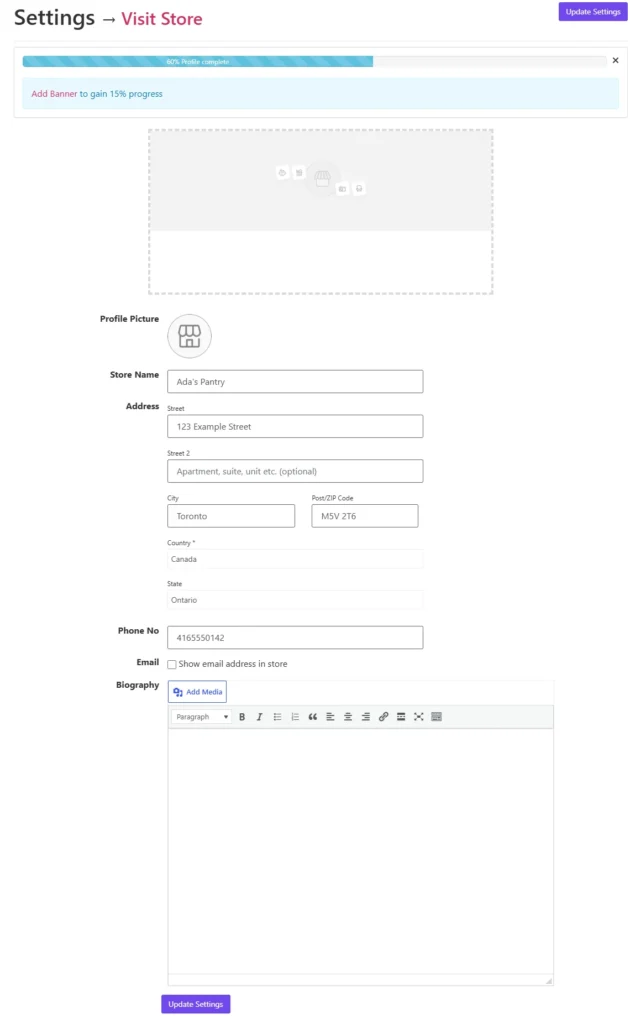
- In your dashboard, go to Settings, then Store.
- Upload your logo under Profile Picture, and a wide photo as your banner.
- Tap Update Settings.
- Logo: a square image, at least 300 × 300 pixels. A PNG with a white or clear background looks best. It’s trimmed to a square when you upload it, so leave a little space around your logo.
- Banner: a wide photo, at least 625 × 300 pixels, about twice as wide as it is tall. It’s trimmed to that shape when you upload it, and on a computer screen the top and bottom edges are cut a little, so keep words and faces near the middle.
Products come next: you can add them as soon as your shop is approved.