
Add your first product
Photos, name, price, category and stock, then save it for review.
Have these ready
- At least one photo
- The product name and a short description
- The price in US dollars
- How many you have in stock
- The weight in kg, packed (we use it to work out shipping)
You can add products once your shop is approved.
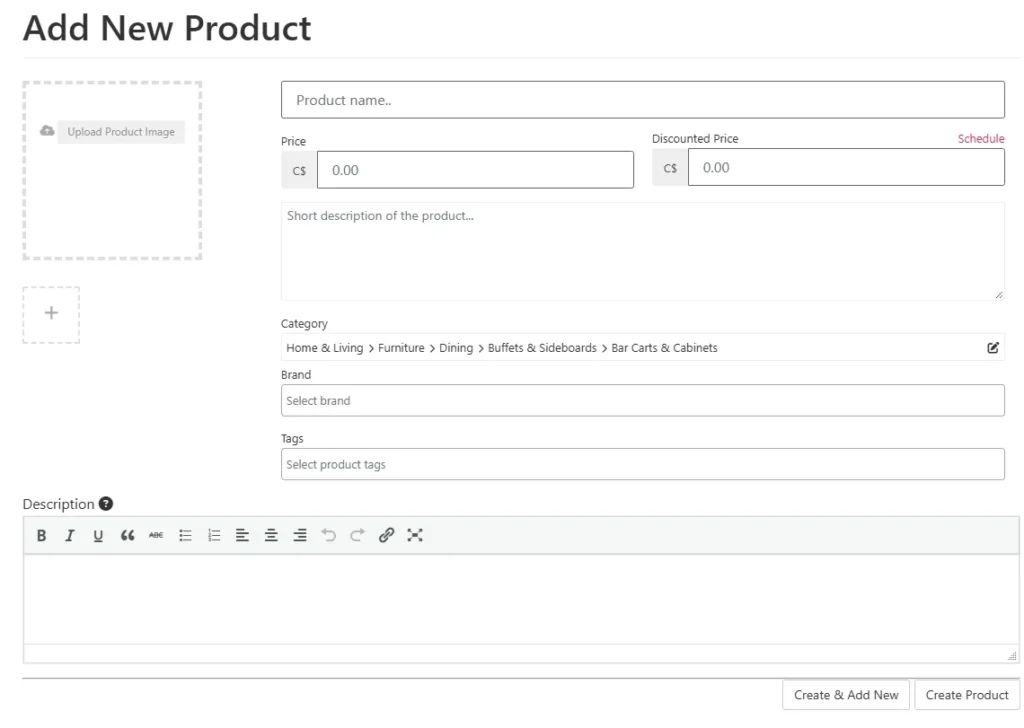
- Open your dashboard, go to Products and tap Add new product. The product form opens.
- Add photos. Tap Upload a product cover image, then Upload files and pick your photo. If a Crop image window opens, tap Crop image. The box already covers the whole photo, so nothing is cut unless you move it. Add more photos with the + box under the main one.
- Type the product name in Title.
- Choose the category. Tap the pencil icon next to Category and pick the right one.
- Type the price. You Earn next to it shows what you get after our commission. Leave Discounted Price empty unless the item is on sale. Add a Brand and Tags if you like.
- Write a short description in Short Description: what it is, the size, what it’s made of. Add more detail in Description if you like.
- Add your stock. Under Inventory, tick Enable product stock management and enter the Stock quantity.
- Add the weight. Under Shipping and Tax, enter the weight in kg, packed. We use it to work out the shipping price.
- Tap Save Product.
We check each new product before it goes live in your shop.